OpenClaw

Enter passcode to access workshop materials

Contact the instructor for access

OpenClaw Workshop 1 / 17

Launch Your Agent

Session 2 — March 26, 2026

Cloud Deploy Local Install OpenClaw Configuration Hands-On
press arrow to begin
Recap — Session 1 2 / 17
00 — Quick Recap

What We Covered Last Week

Before we get our hands dirty, let's revisit the key ideas from Session 1.

OpenClaw = Brain + Hands

The LLM is the brain — it thinks and reasons. The extensions are the hands and arms — they take action across your tools. OpenClaw is the body that connects them.

OpenClaw vs Claude Code

Claude Code is great for software engineering. OpenClaw is an open, cross-platform agent — works with any LLM, connects to any tool, runs anywhere.

CIA Triad

Confidentiality, Integrity, Availability — the framework for every security decision with AI.

The Landscape

OpenClaw, Claude Code, Codex, Cursor — same core skills, different form factors.

Deployment Options

Cloud, hybrid, or fully local — each with tradeoffs in cost, privacy, and availability.

Today's goal: By the end of this session, every person in this room will have a running OpenClaw agent — either in the cloud or on your own machine.
Block 1 — Why Go Local? 3 / 17
01 — The Case for Local

Why Run OpenClaw Locally?

OpenClaw is powerful, but running it on cloud APIs gets expensive fast — and you're at the mercy of providers. Here's why local matters.

Cost

OpenClaw eats tokens fast. Before you know it, you're spending $100–$200. Local models = zero API costs.

Privacy

Everything stays within your network. Nobody else can see your data. No third-party LLM sees your conversations.

Availability

Cloud goes down, credits run out, providers ban personal plan usage. Local keeps running no matter what.

But be honest: Local AI is powerful but hard. Complex setup, networking config, hardware requirements, and you become the system administrator. Today we'll walk through it step by step.
Block 1 — Two Components 4 / 17
02 — Architecture

Two Components, Three Setups

Running OpenClaw has two parts: where OpenClaw runs and where the AI model runs. These can be in different places.

Fully Cloud

OpenClaw on a server (Render, VPS) → calls cloud AI (OpenAI, Claude, Gemini). Easiest setup.

Beginner

Hybrid

OpenClaw on your Mac Mini at home → calls cloud AI APIs. Your agent is local, but it uses cloud models.

Popular

Fully Local

OpenClaw on your machine → local LLM via Ollama. Zero cloud dependency. Maximum privacy.

Advanced
Today's plan: We'll cover the first two. Start with cloud on Render (fast), then local install with Ollama. Plus a preview of connecting to WhatsApp and Google.
Path A — Deploy on Render 5 / 17
03 — Cloud Path

Deploy on Render

Render logo

We have $50 in free Render credits for everyone — that's about 2 months free. We'll walk through every step together.

What is Render?
Render is a cloud platform that runs your apps for you — think of it like renting a computer in the cloud that's always on. You don't need to manage servers or know how they work. You just click deploy, and your OpenClaw agent is live on the internet 24/7 with its own web address.

Step-by-Step (we'll do this together)

  1. Create a GitHub accountgithub.com/signup (skip if you have one)
  2. Create a Render accountrender.com — sign in with your GitHub
  3. Claim your $50 creditclick here to claim
  4. Copy the templateopen this template → click "Use this template" → "Create a new repository"
  5. Add your AI provider API key — Render will ask for it during setup (see options below)
  6. Deploy it — A few clicks in Render and your agent is live
  7. Open your agent — Visit the URL Render gives you and start chatting
Where do I get an API key?
Render needs an API key to connect your OpenClaw to an AI model. Pick any provider:
Important: We'll use a special Render-ready version of OpenClaw (not the standard one). Don't worry — we'll show you exactly which one to use.
Breakout 1: Cloud Setup Check 6 / 17
Hands-On

Get your cloud agent running

Help each other get set up. If you're done, try giving your agent a task. Share what worked in the doc.

Open Shared Google Doc Share your first agent task and what happened
Path B — What Is Ollama? 7 / 17
04 — Local Path

Meet Ollama

Think of Ollama as the app store for AI models on your computer. Instead of paying for ChatGPT or Claude, you download open-source AI models and run them for free on your own machine.

It's like having your own private ChatGPT — no internet needed, no subscription, and your data never leaves your computer.

Free & Open Source Mac, Windows, Linux 40,000+ Integrations
Ollama logo

100% Free

No API costs, no subscriptions. The AI runs on your hardware.

100% Private

Your data stays on your machine. Nothing is sent to the cloud.

Easy to Install

One command or one download. Works on Mac, Windows, and Linux.

Not ready for local? No worries — stick with the Render cloud path. You can always set up locally later, or we can help you 1-on-1 after the session.
Path B — Install Ollama + OpenClaw 8 / 17
06 — Beginner Local Setup

Install Ollama + OpenClaw

The beginner local setup is everything on one machine. Install Ollama, download a model, then install OpenClaw through Ollama.

Step 1: Install Ollama

# Mac/Linux: Install via terminal curl -fsSL https://ollama.com/install.sh | sh # Or download from ollama.com and install the app # Verify it works: ollama --version

Step 2: Download a Model

Run this to download and test the recommended model:

ollama run qwen3.5:9b

It will download (~6 GB) and start a chat. Type hi to test it works. When you're done, type /bye to exit.

⏱ Heads up: The download takes ~3 minutes on a fast connection, but may take longer depending on your internet speed. Be patient!

Running ollama with qwen3.5:9b — typing hi, getting a response, then /bye to exit

Step 3: Launch OpenClaw

Once the model works, launch OpenClaw through Ollama:

ollama launch openclaw

Choose qwen3.5:9b when it asks which model to use. When it's running, it should look like this:
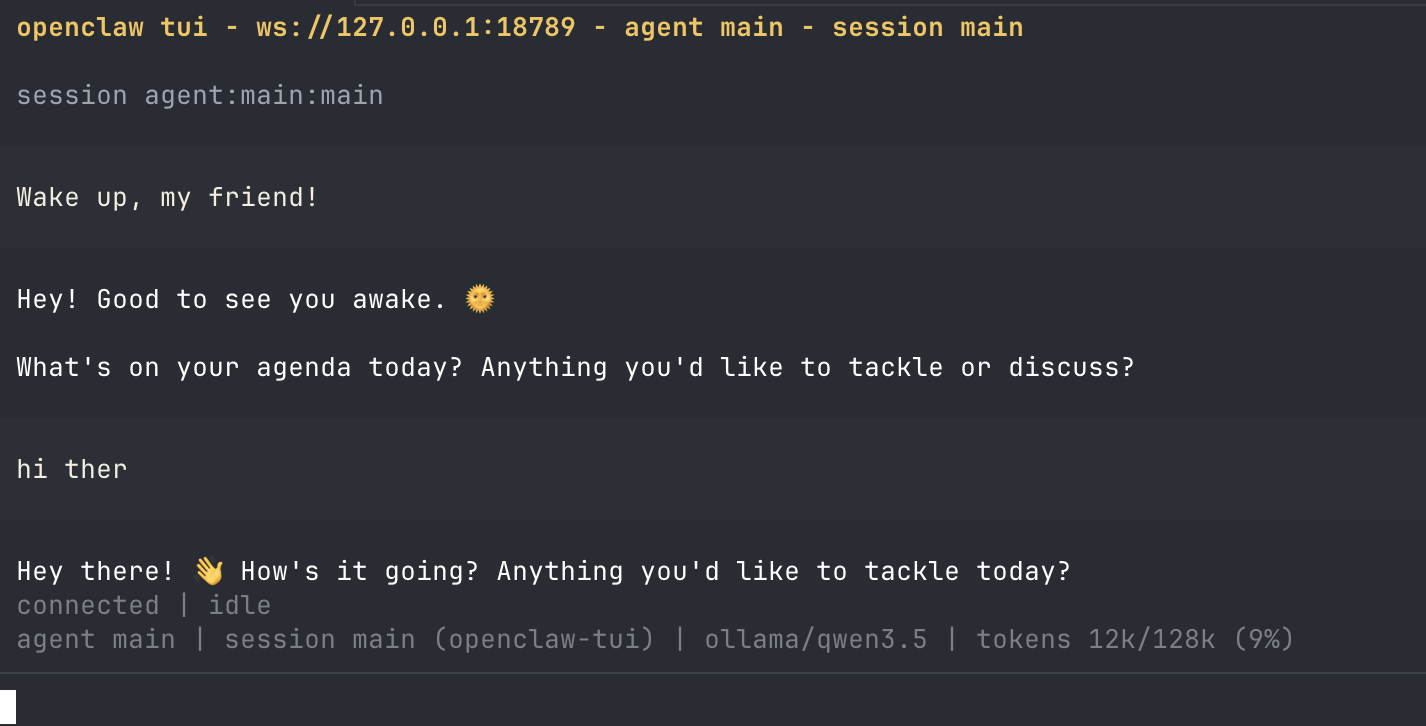
OpenClaw running locally with Ollama

It also gives you a Web UI link you can open in your browser:

OpenClaw Web UI URL with token

Your URL and token will be different! Copy the exact URL from your own terminal — the port and token are unique to your machine.

Your URL and token will be different! The port number and token are unique to your machine. Make sure you copy the exact URL from your terminal — don't use someone else's.
Path B — Choosing Models 9 / 17
07 — The Hardest Part

Choosing the Right Model

This is the hardest part of running locally. It's a balance between speed and quality. Use LM Studio to test models, then run the best one in Ollama.

Local Models (free, runs on your machine)

ModelRAMSpeedQualityBest For
QQwen 3.5 9B8 GBGoodGreatStart here
QQwen 3.5 27B24 GBMediumExcellentPowerful machines
GGemma 3 12B12 GBGoodGreatAll-rounder, images
LlamaLlama 4 Scout 8B8 GBFastGoodLow-power machines
DeepSeekDeepSeek R1 14B16 GBMediumExcellentComplex reasoning

Cloud Models (needs API key or Ollama cloud tag)

ModelHow to UseQualityCost
KimiKimi K2 / K2.5ollama run kimi-k2:cloudTop-tierFree via Ollama
OOpenAI (GPT-5)API key from platform.openai.comTop-tierPay per use
AAnthropic (Claude)API key from console.anthropic.comTop-tierPay per use
GGoogle (Gemini)API key from aistudio.google.comExcellentFree tier available

You can mix and match — use a free local model for everyday tasks and switch to a cloud model when you need higher quality.

Tip: We started with Qwen 3.5 9B because it's free and works well with OpenClaw's tool-calling. You can always add cloud models later for better quality. Use LM Studio to test which local models your hardware can handle.

Adding Models to OpenClaw

# Download a new model in Ollama ollama run gemma3:4b # Three ways to add it to OpenClaw: # 1. Use Claude Code / any AI coding agent (best): # "Add gemma3:4b to my OpenClaw config as a model" # 2. Ask OpenClaw itself to update its config # 3. Manually edit ~/.openclaw/openclaw.json (error-prone) # After any change, restart the gateway: openclaw gateway restart
Pro tip: Don't manually edit the config file — it's error-prone. Use Claude Code or another AI coding agent to modify it for you. It will find the right file and make the correct changes.
Path B — Configuring OpenClaw 10 / 17
08 — Configuration

Configuring OpenClaw

After installing, you can customize your setup at any time by running:

openclaw configure

This shows your current settings and lets you change them:
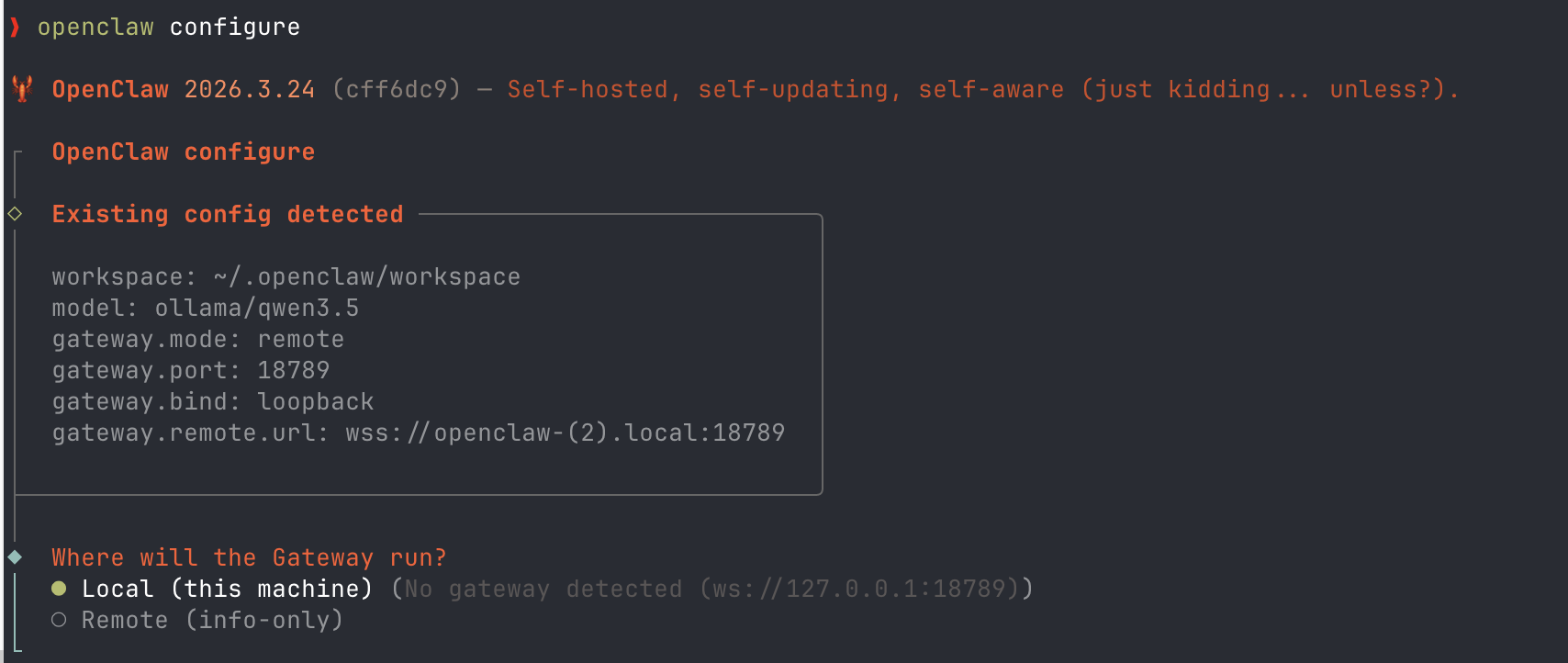
OpenClaw configure screen showing existing config and gateway options

Gateway Mode: Local vs Remote

OptionWhat It MeansChoose When
Local (this machine)OpenClaw runs right here on this computerThis is your main machine — most people choose this
Remote (info-only)Connect to an OpenClaw running on a different machineYou have OpenClaw on another computer and want to control it from here
For today: Choose Local. That means your agent runs on your machine. Remote is for advanced setups where you have a second device — we'll cover that in a future session.
Breakout 2: Local Setup Help 11 / 17
Hands-On

Get your local agent running

Work through the installation steps. Help your neighbors. If you're stuck, share the error in the doc — someone probably hit the same thing.

Open Shared Google Doc Share your setup status — working or stuck?
Block 3 — Your First Task 12 / 17
08 — Hands-On

Give Your Agent a Real Task

Now that your agent is running, let's put it to work. These prompts are based on what you said you wanted to build last week. Click the copy button on any prompt and paste it into your agent!

Morning Briefing

Write me a morning briefing for today. Include the top 5 AI news stories, a summary of what's trending in tech, and 3 interesting events happening in the Bay Area this week. Format it as a short email I can skim in 2 minutes.

Market Research

Research the current state of AI agents for small businesses. Find the top 5 platforms, compare their pricing, and tell me which one is best for a team of 3-5 people who want to automate customer follow-ups and scheduling. Give me a comparison table.

LinkedIn Post

Write a LinkedIn post about what I learned at an AI agents workshop tonight. The key takeaway is that AI agents are different from chatbots because they can take action across your tools, not just answer questions. Keep it under 200 words, professional but conversational. Add 3 relevant hashtags.

Sales Email

Draft a follow-up email to a potential client I met at a networking event last week. Their name is [NAME] and they run a [TYPE] business. I want to offer a free consultation about how AI can help them automate their workflow. Keep it short, warm, and not pushy.

Meeting Organizer

I need to schedule a 30-minute intro call with 3 startup founders next week. Draft an email asking for their availability Tuesday through Thursday, 10am-4pm PST. Include a brief agenda: introductions, what they're building, and how we might collaborate.

Job Search Helper

Find 5 open positions in venture capital or private equity that value AI and data skills. For each one, give me the company name, role title, location, and a 1-sentence summary of why it might be a good fit for someone with a business + AI background.

Tip: The more specific you are, the better the result. Include names, context, format, and audience. If the first response isn't perfect, tell it what to change — iteration is normal!
Breakout 3: Show & Tell 13 / 17
Breakout Room

What did your agent do for you?

Share the task you gave it, what it produced, and what surprised you. What would you try next?

Open Shared Google Doc Paste your best prompt and the result
Block 4 — Connections 14 / 17
09 — Connections

Connect to Real Tools

An agent that can only talk to you in a terminal isn't that useful. Let's connect it to the tools you actually use.

Connect WhatsApp (Live Demo)

Message your OpenClaw agent directly from WhatsApp on your phone:

  1. Run the command below — choose "Download from npm" when it asks to install the plugin
  2. Scan the QR code — WhatsApp on your phone → Settings → Linked Devices → Link a Device
  3. Send a message — your agent will respond through WhatsApp
openclaw channels login --channel whatsapp

If you see "web login provider is not available": the WhatsApp plugin isn't installed yet. The command above will prompt you to install it — choose "Download from npm".

Connect Google (via gog CLI)

Connect Gmail, Calendar, and Drive using the gog CLI — created by the creator of OpenClaw.

More Channels, Extensions & Tools (Next Week)

In Session 3, we'll connect your agent to messaging channels, data sources, and tools so it can work in the real world.

Security tip: Consider connecting to a separate Google account first, not your primary one. Remember the CIA Triad — more access = more power but more risk.
Tips & Troubleshooting 15 / 17
09 — Tips

Tips for Success

Setup is the hardest part — but you only do it once. After that, your agent is ready to use every day.

Setup Is a One-Time Thing

The install and configuration might feel hard, but you only do it once. After today, your agent is ready to go whenever you need it.

Keep Your Computer Awake

If you're running locally, turn off sleep mode and low power saving. Your agent needs the computer to stay on to keep working.
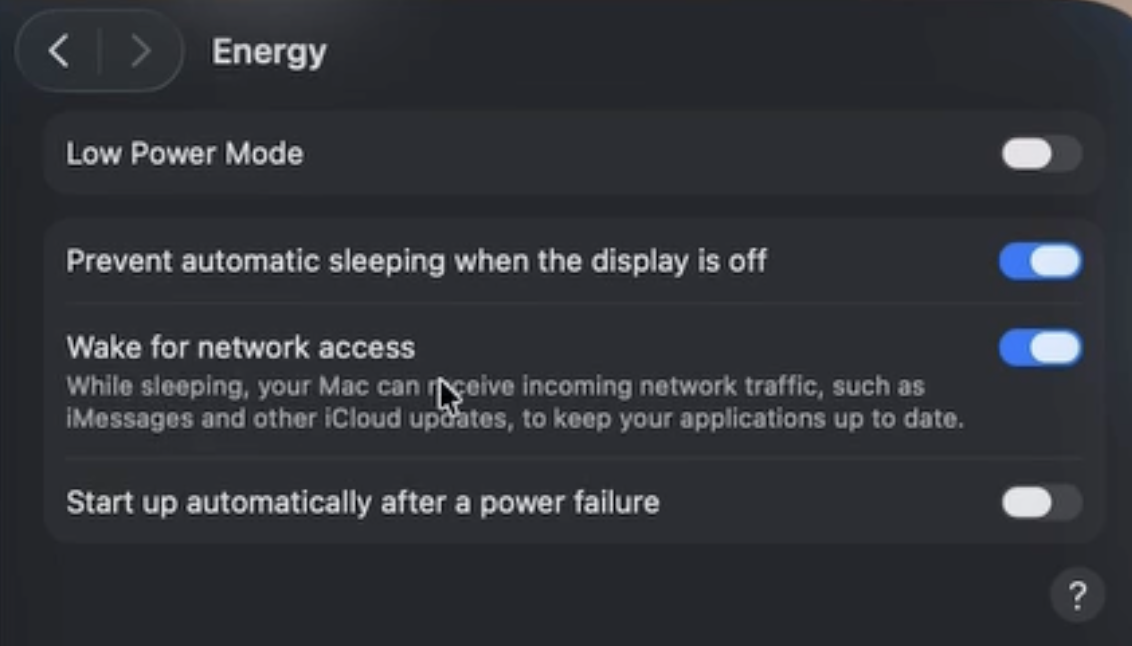
macOS Energy settings — Prevent automatic sleeping and Wake for network access enabled

Choose the Right Model

For local: test different models to find the right balance of speed and quality for your machine. For cloud: start with whatever the default is, you can always switch later.

Tip: Use LM Studio to test different open models on your hardware before committing. It lets you quickly try out models, compare speed & quality, then run the best one in Ollama.

Connect Your Tools

Today we showed Google Drive via gog. Next week we'll connect Telegram, WhatsApp, Notion, and more — that's when it gets really powerful.

Common Issue: "models.providers.ollama.api: Invalid input"

This happens when your OpenClaw version is too old to work with Ollama. The fix is simple — update OpenClaw:

# Check your version openclaw --version # Update to latest (need version 2026.3+ for Ollama support) npm update -g openclaw # Then re-run the Ollama setup ollama launch openclaw
Pro tip: When you're setting up Ollama, OpenClaw, or any tool and something goes wrong — use Claude Code, Codex, or any AI coding agent to help debug it. Just paste the error and ask it to fix your config. It can read and edit the files for you.
Closing — What's Next 16 / 17
10 — Looking Ahead

What's Next

You now have a running AI agent. Next week, we go deep on connecting it to the tools and channels you use every day.

Session 3: Connections Deep Dive

April 2 — Full walkthrough of connecting your agent to the real world:

  • Channels — message your agent from the apps you already use
  • Extensions — give your agent access to external data sources and context
  • Tools — let your agent take actions on your behalf

Session 4: Skills & Automations

April 9 — Build modular skills, persistent memory, and automated workflows that run without you.

Before Next Session

  1. Confirm your agent works — Cloud or local, make sure you can start it and give it a task
  2. Create a Telegram account — We'll use it to connect your agent to a real messaging channel
  3. Think about a use case — What repetitive task do you want your agent to handle via messaging?
Recording: Today's session recording will be sent out within 3 business days.
Need help? chinat@daydreamers.live — or book a 1-on-1 consultation. I'm happy to walk you through setup in person.
Feedback 17 / 17
Feedback

Share Your Feedback

05:00
Timer
05:00

Have any questions? Drop them in the Zoom chat.