Enter passcode to access materials
Contact the instructor for access
Session 3 — Google Channels, Search, & Real Workflows
sudo ollama launch openclaw — the sudo gives admin access. Use qwen3.5:9b when it asks which model.
Today we go from setup to real workflows. First we connect your tools, then build three practical pipelines you can use immediately.
Connect Google channels (Drive, Gmail, Calendar, Docs) to your OpenClaw agent
Add web search for real-time research. Combine with your Drive memos for personalized analysis.
Upload transcripts, memos, and docs that give your agent your personal context.
| # | Use Case | Tools Used |
|---|---|---|
| 1 | Meeting notes → parse → delegate tasks to sub-agents | Zoom + Google Docs + Gmail |
| 2 | Digital Twin deal analysis — research Lovable from your perspective | Brave Search + Google Drive + Docs |
| 3 | Auto-generate & post to LinkedIn from meeting insights | Google Docs + LinkedIn |
Before we build anything, we need to give your agent access to the tools it'll use. We'll use gog — an open-source CLI that connects OpenClaw to Google services.
Create, read, and edit documents. Upload and download files from Drive. Used for meeting summaries, TODO checklists, and reports.
Send follow-up emails, share summaries, create calendar events for deadlines, and set reminders automatically.
download and set up this repo: https://github.com/steipete/gogcli
That's it. Your OpenClaw agent will clone the repo, install gog, and walk you through Google OAuth setup automatically.
Before gog can access your Google account, you need OAuth2 credentials from Google Cloud Console. This is a one-time setup.
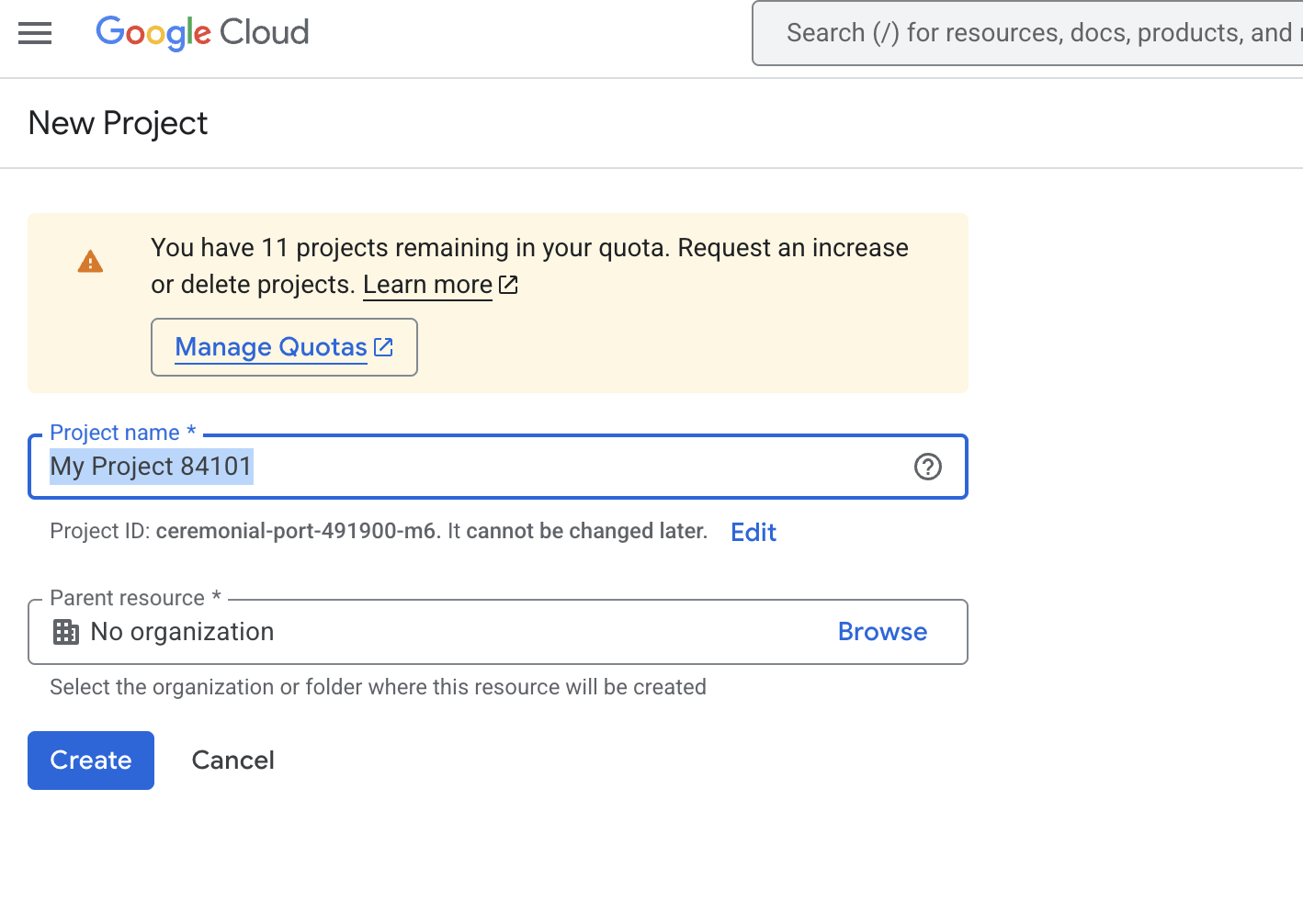
Go to console.cloud.google.com/projectcreate — name it anything (e.g. "OpenClaw") and click Create.
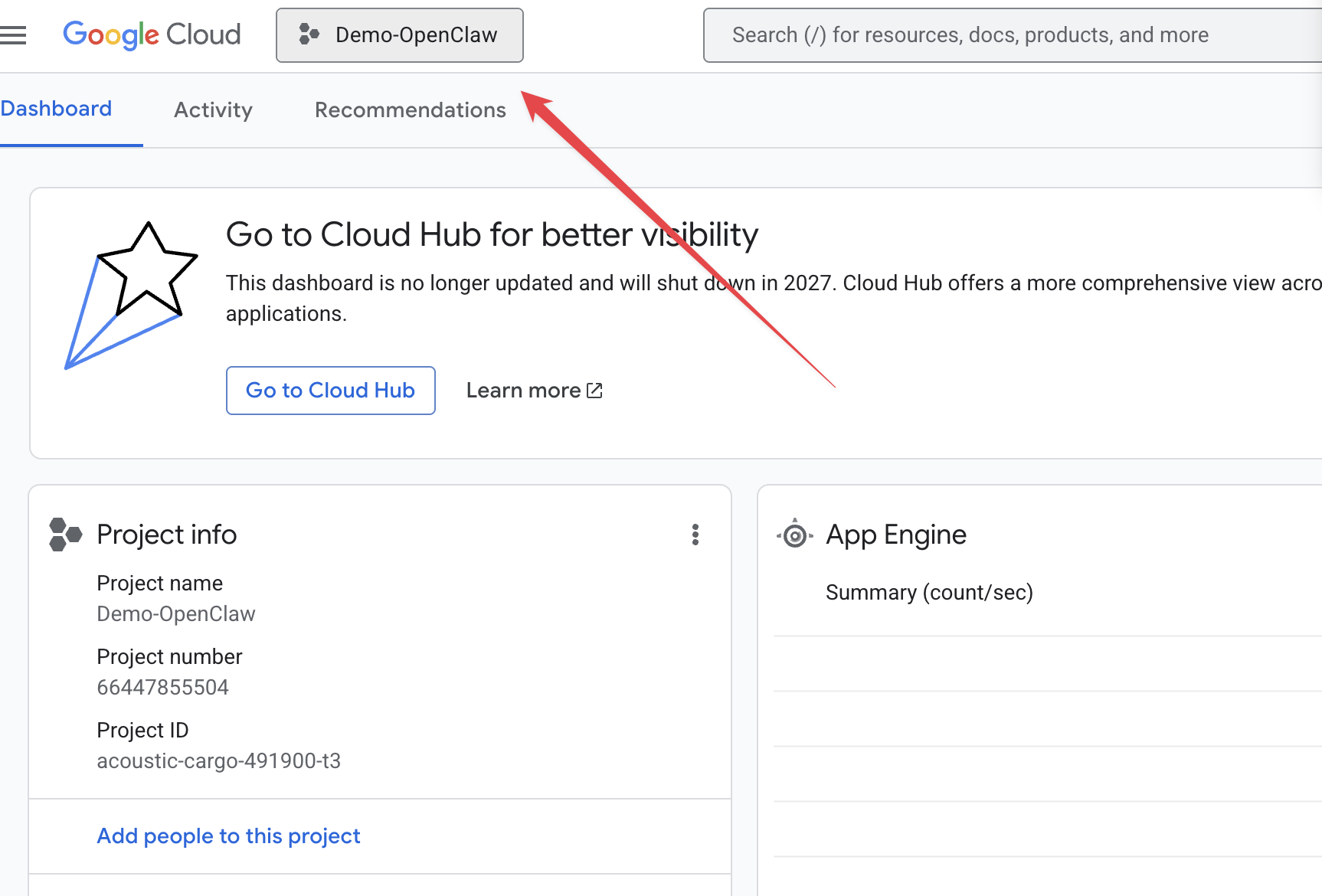
Before enabling APIs, make sure your project is selected in the top bar. You should see your project name (e.g. "Demo-OpenClaw") next to the Google Cloud logo.
Then enable each API from the list below. Click each link → click Enable.
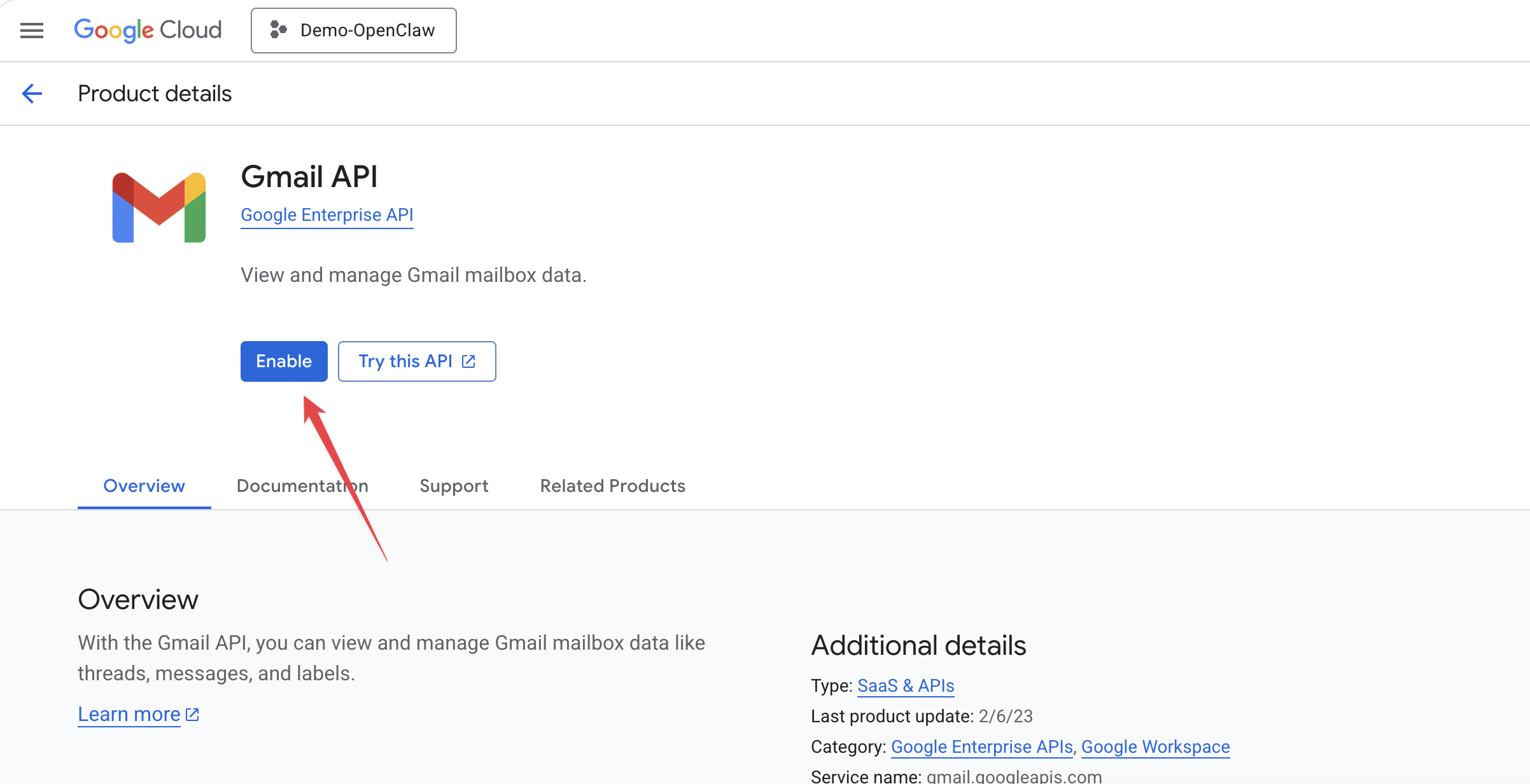
Click each link below to enable that API:
Go to console.cloud.google.com/auth/branding — enter an app name (e.g. "Demo-OpenClaw"), select your email, and click through all 4 steps then Create.
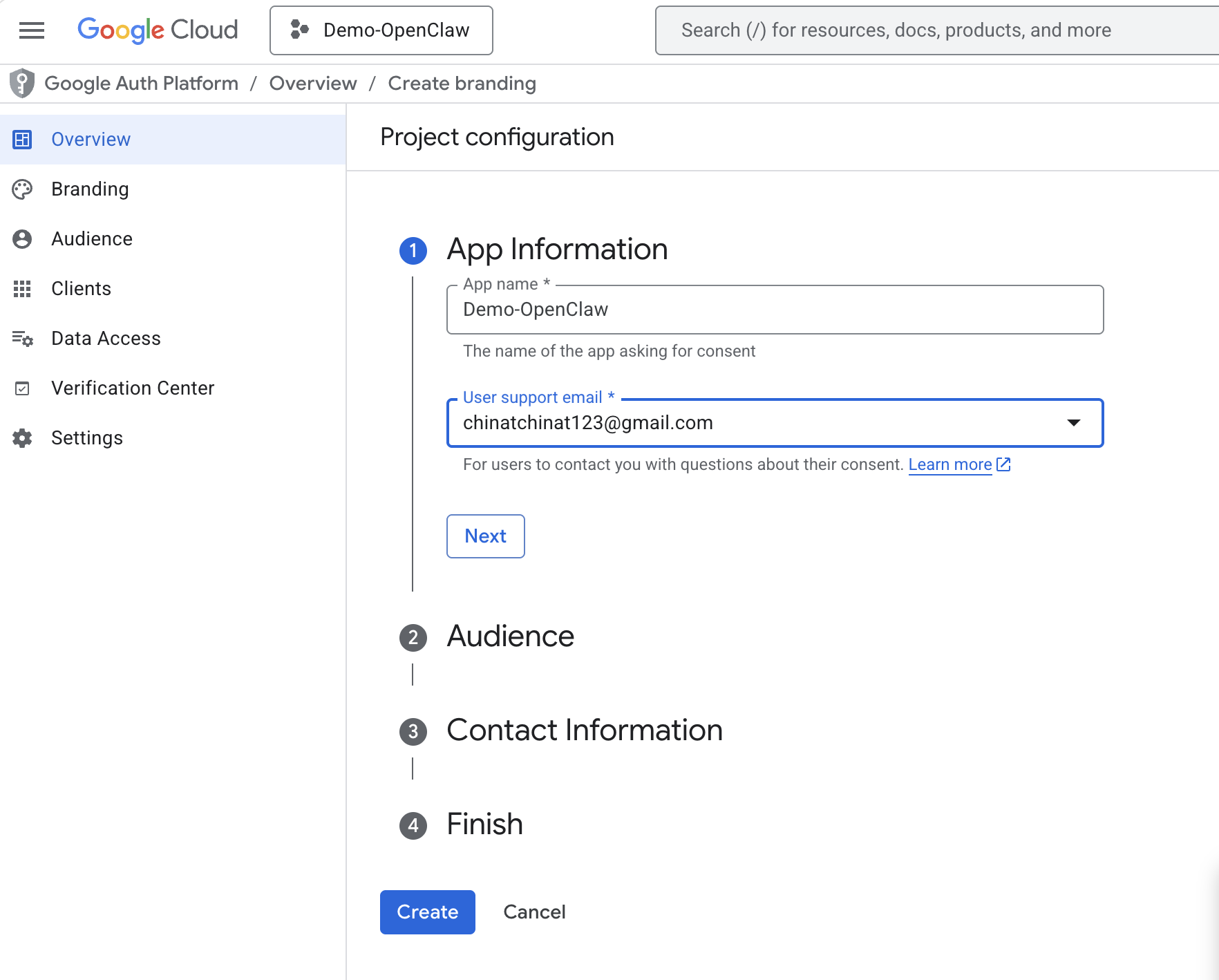
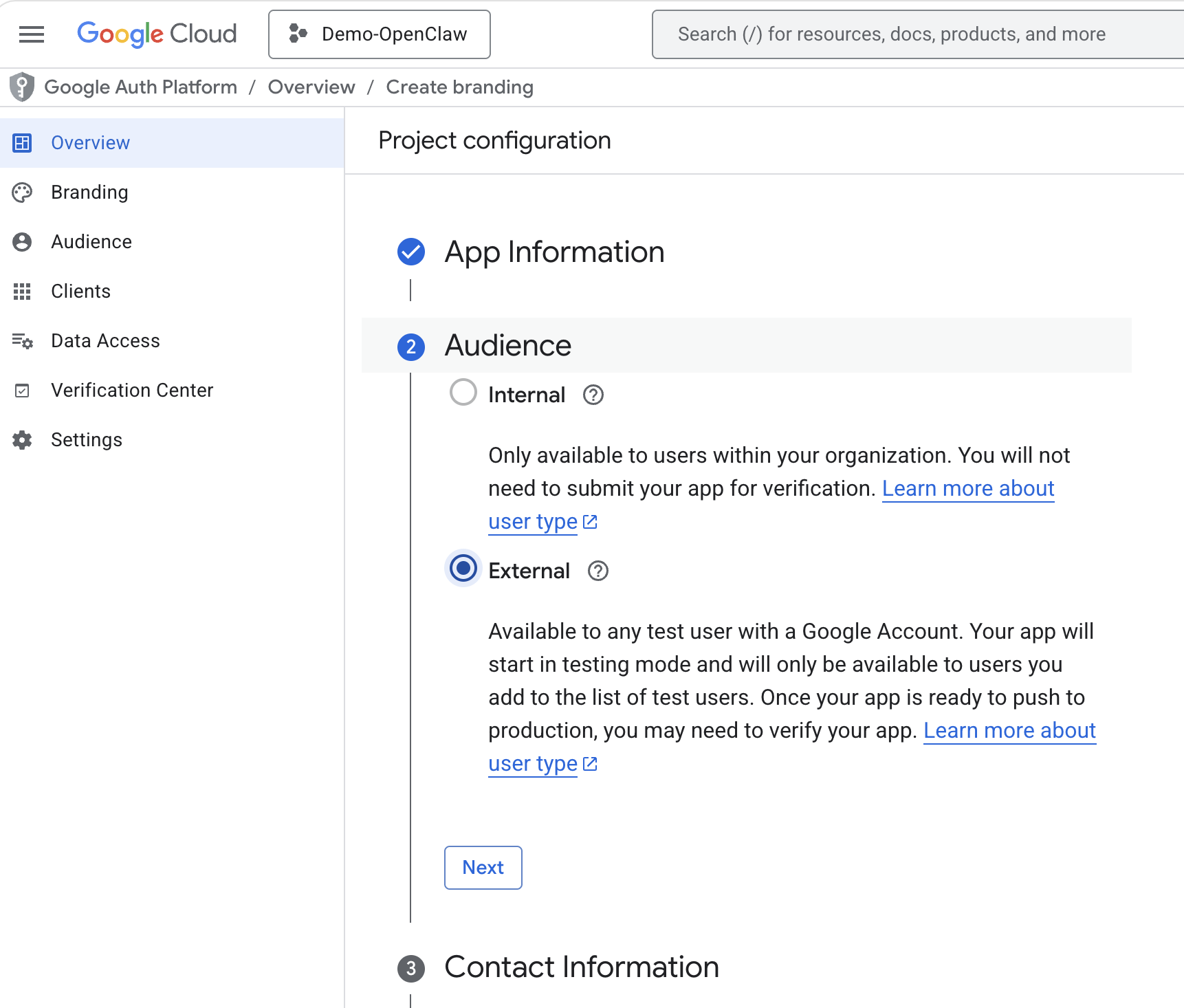
Step 2 (Audience): select External, then click Next.
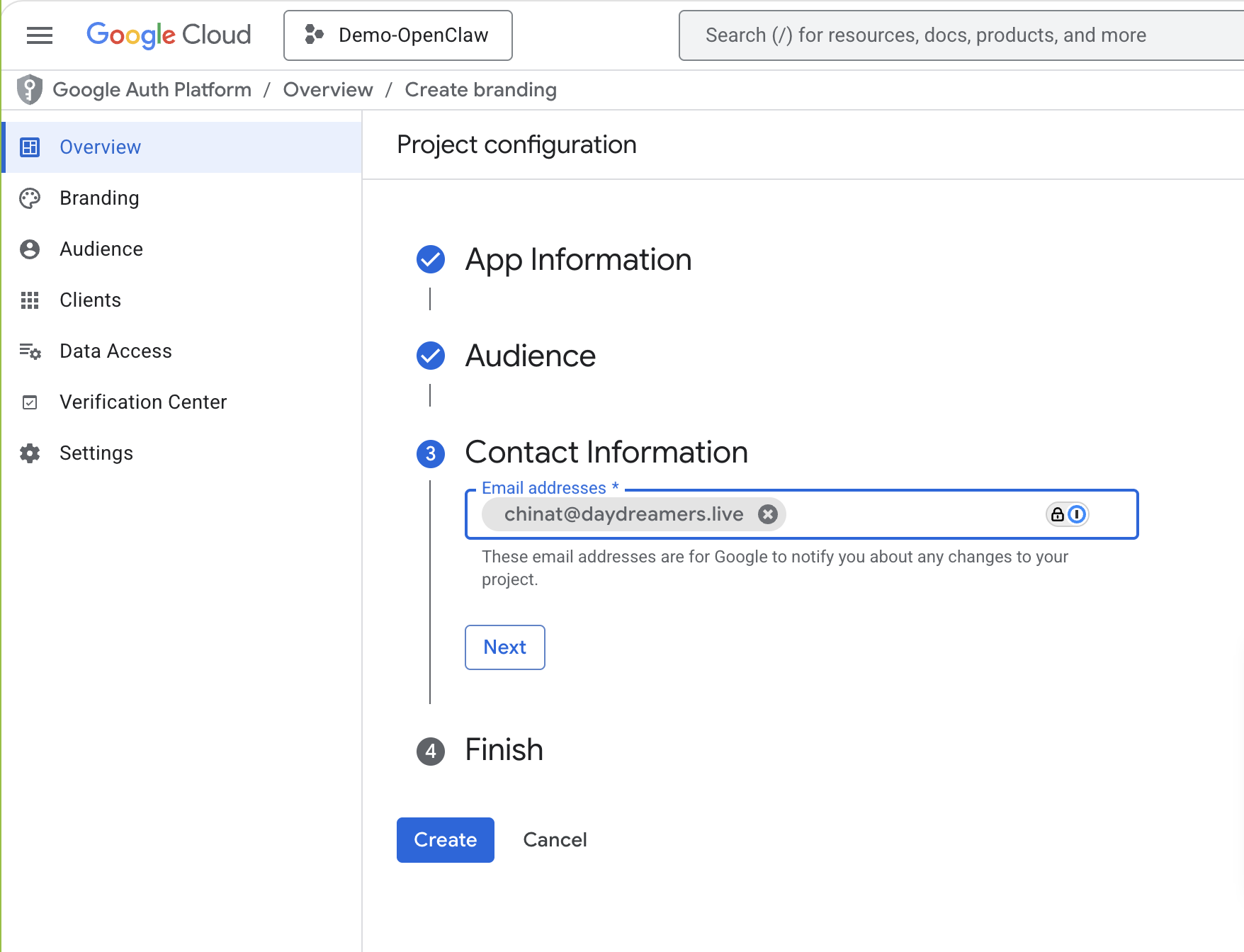
Step 3 (Contact Information): enter your own email address, then click Next and Create.
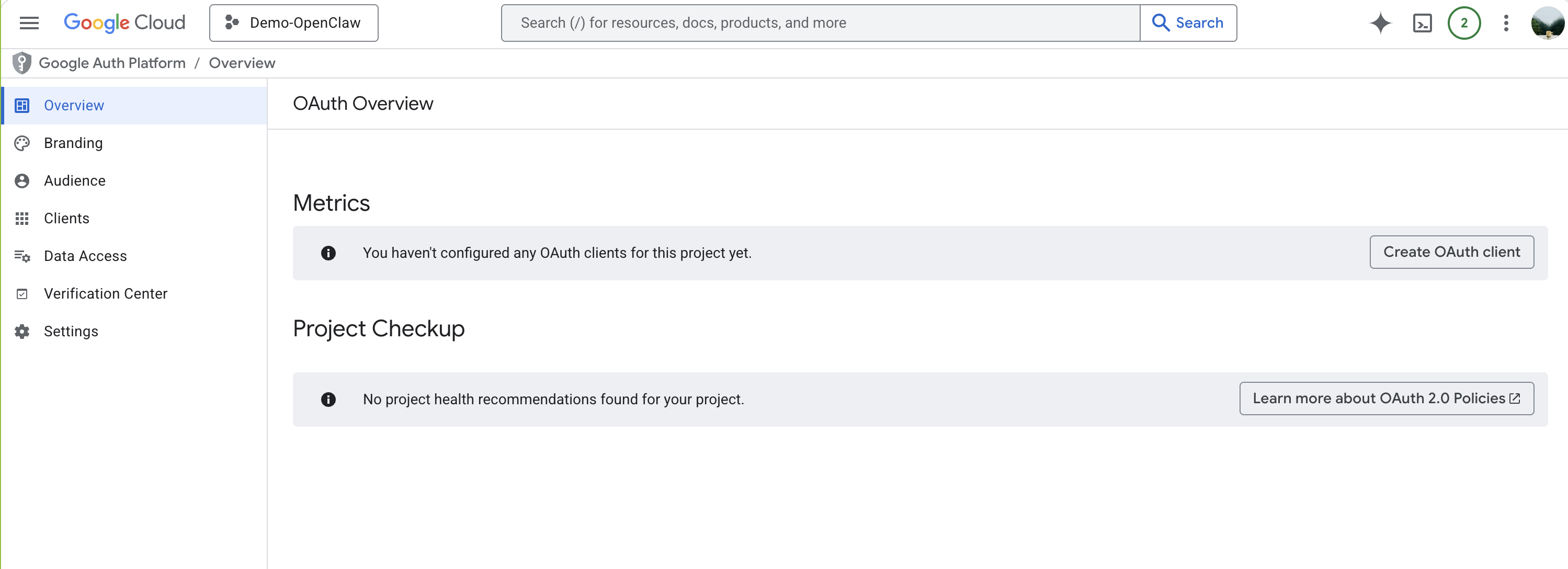
Once complete, you should see the OAuth Overview page. Next: click Create OAuth client.
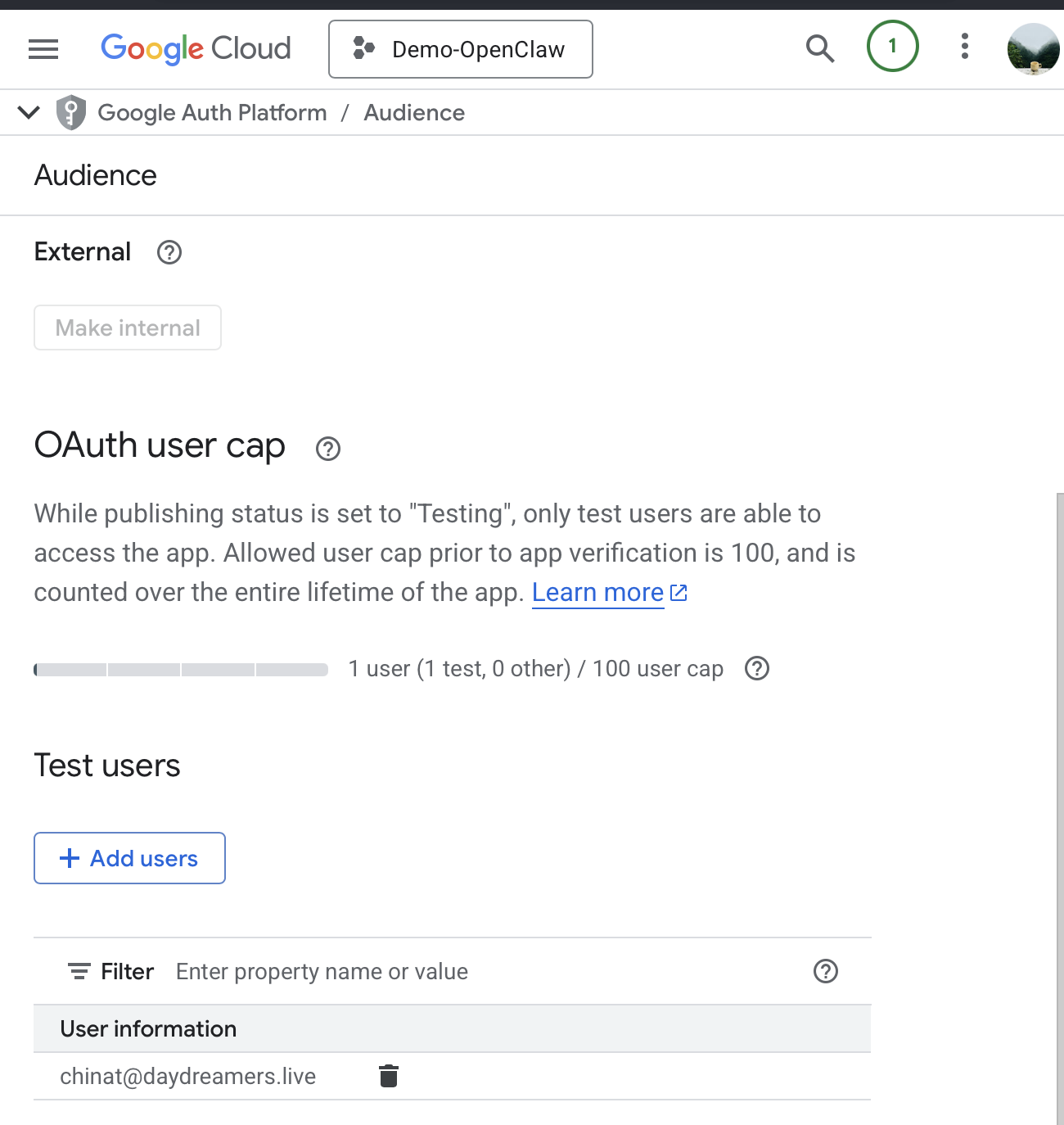
Go to console.cloud.google.com/auth/audience — click + Add users and enter the Google account email you want your agent to access. This is the most important step — this is the actual account you're granting the app permission to read and write to.
Go to console.cloud.google.com/auth/clients — this is the gateway that lets your desktop app (gog) access your Google account. Click + Create client.
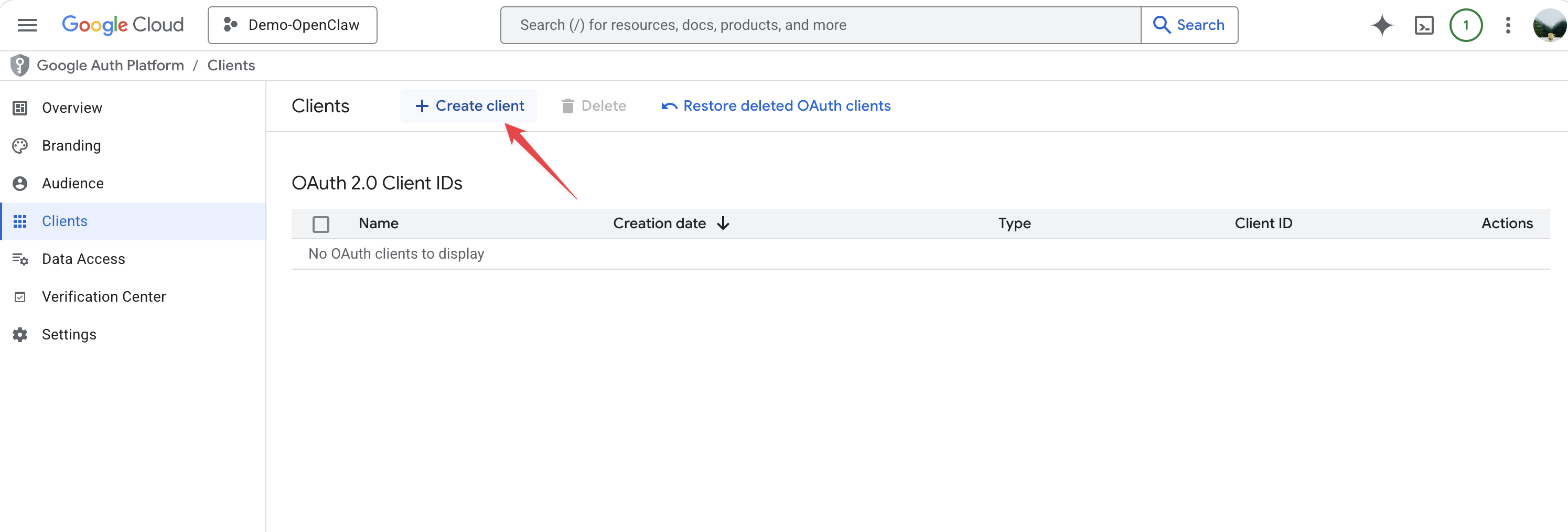
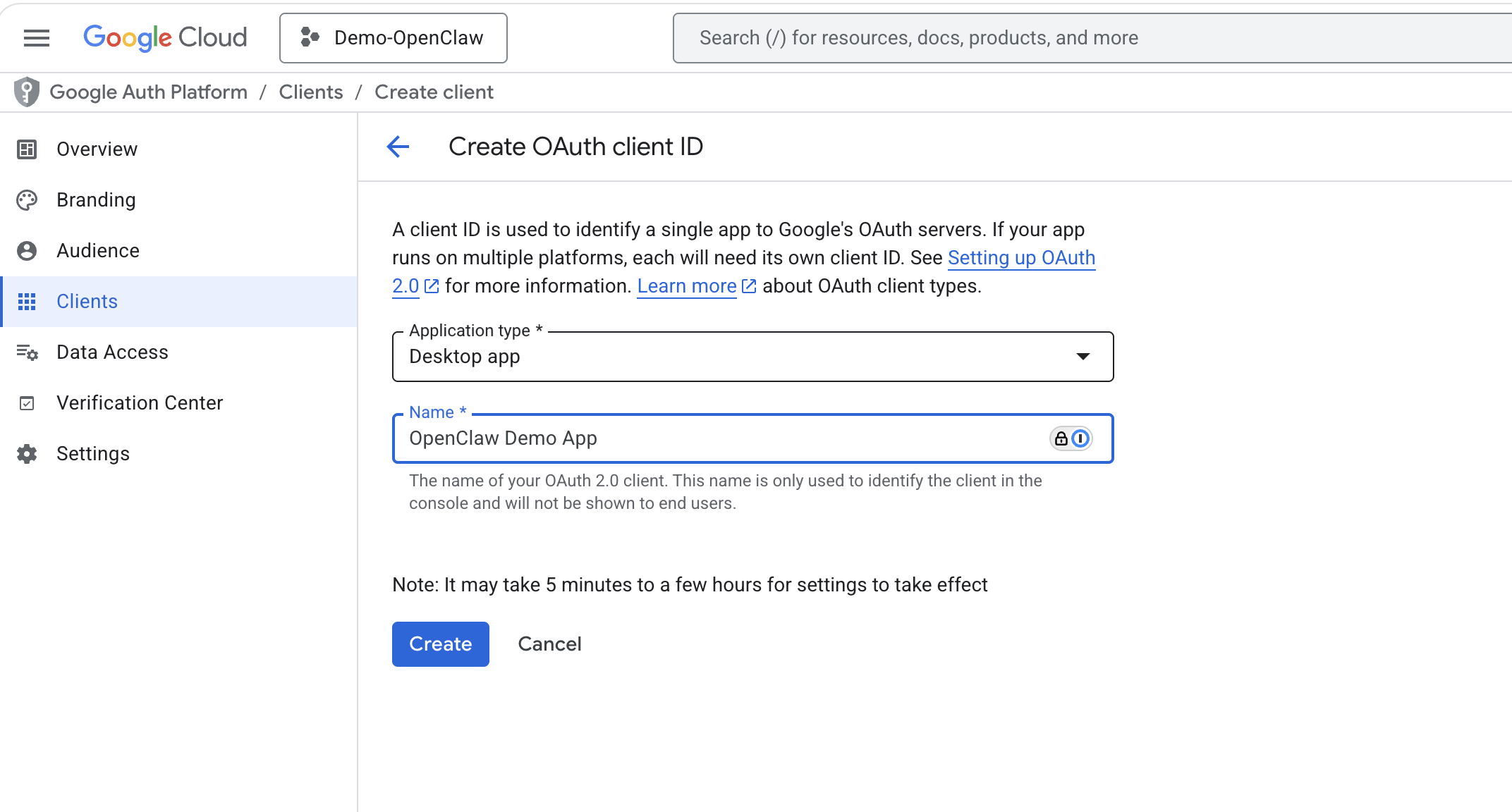
Select Desktop app as the application type, give it a name (e.g. "OpenClaw Demo App"), and click Create.
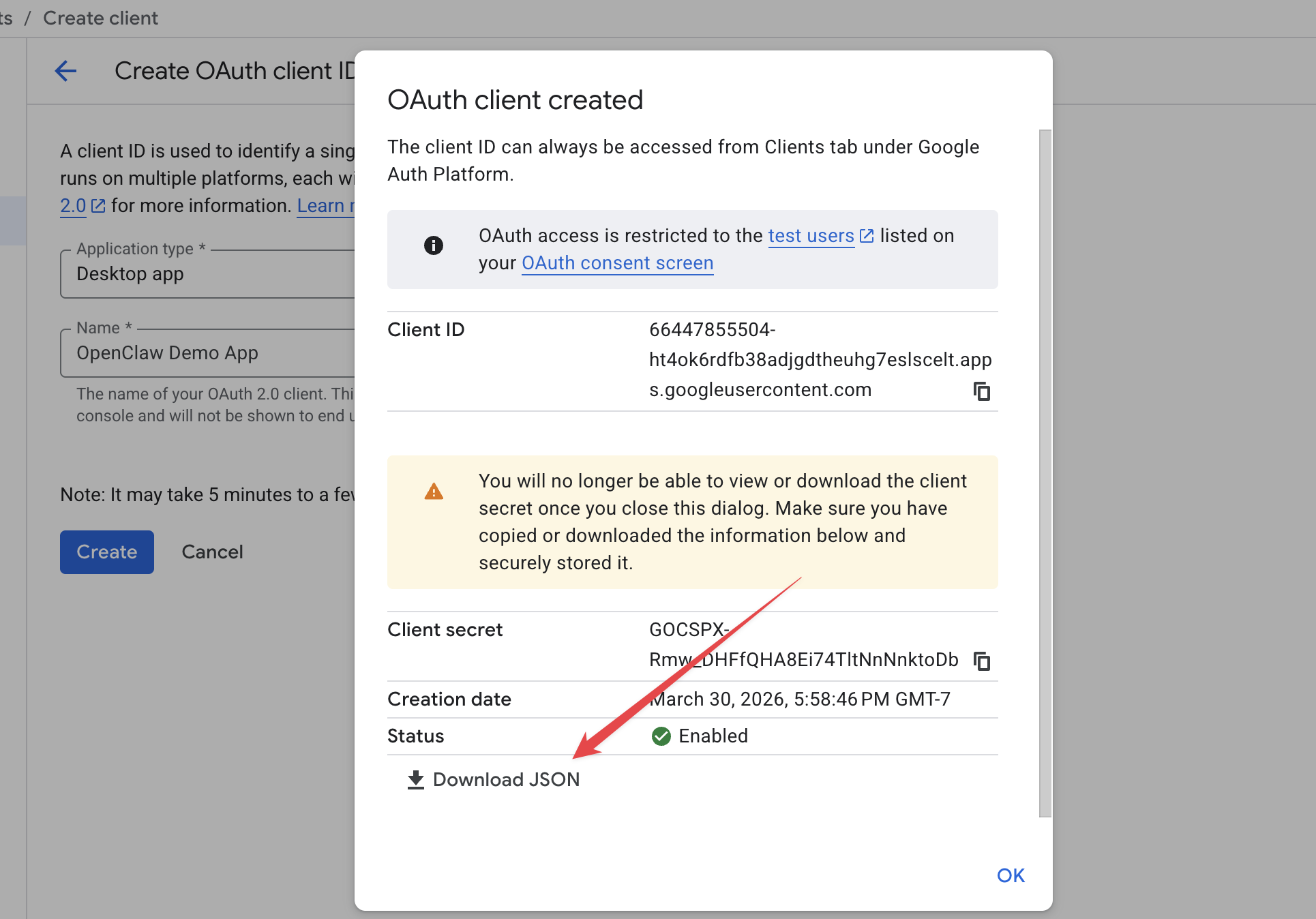
After creating, you'll see this dialog. Click Download JSON — this file contains your client credentials. Don't close this dialog before downloading!
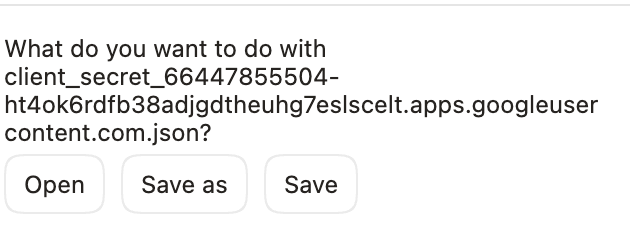
It should appear like this in your downloads — click Save.
Finally, paste this into your OpenClaw chat — it will find the JSON and set everything up for you:
I have downloaded the Google OAuth client credentials JSON file to my Downloads folder. Can you help me find the client_secret JSON file and run gog auth add --client-credentials with it?
Now tell OpenClaw to add your email. Type "can you add [your-email@gmail.com]" in the chat. It will start the Google OAuth flow — a browser window will open for you to sign in and grant access.
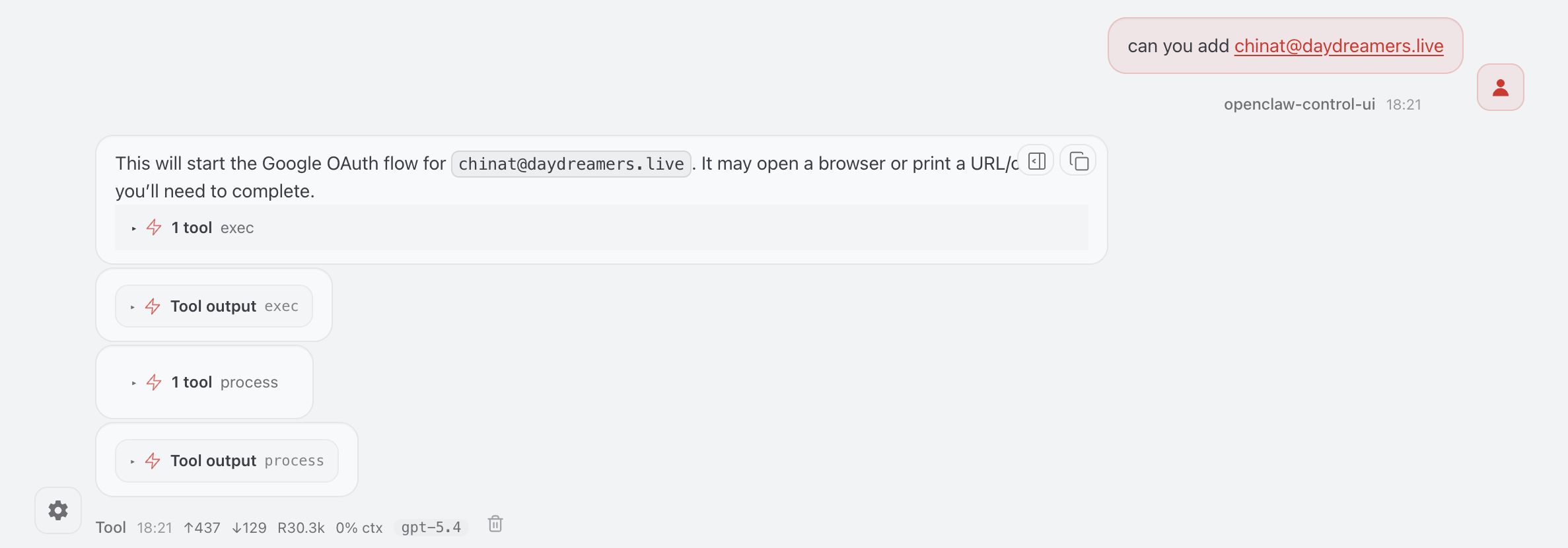
can you add my-email@gmail.com
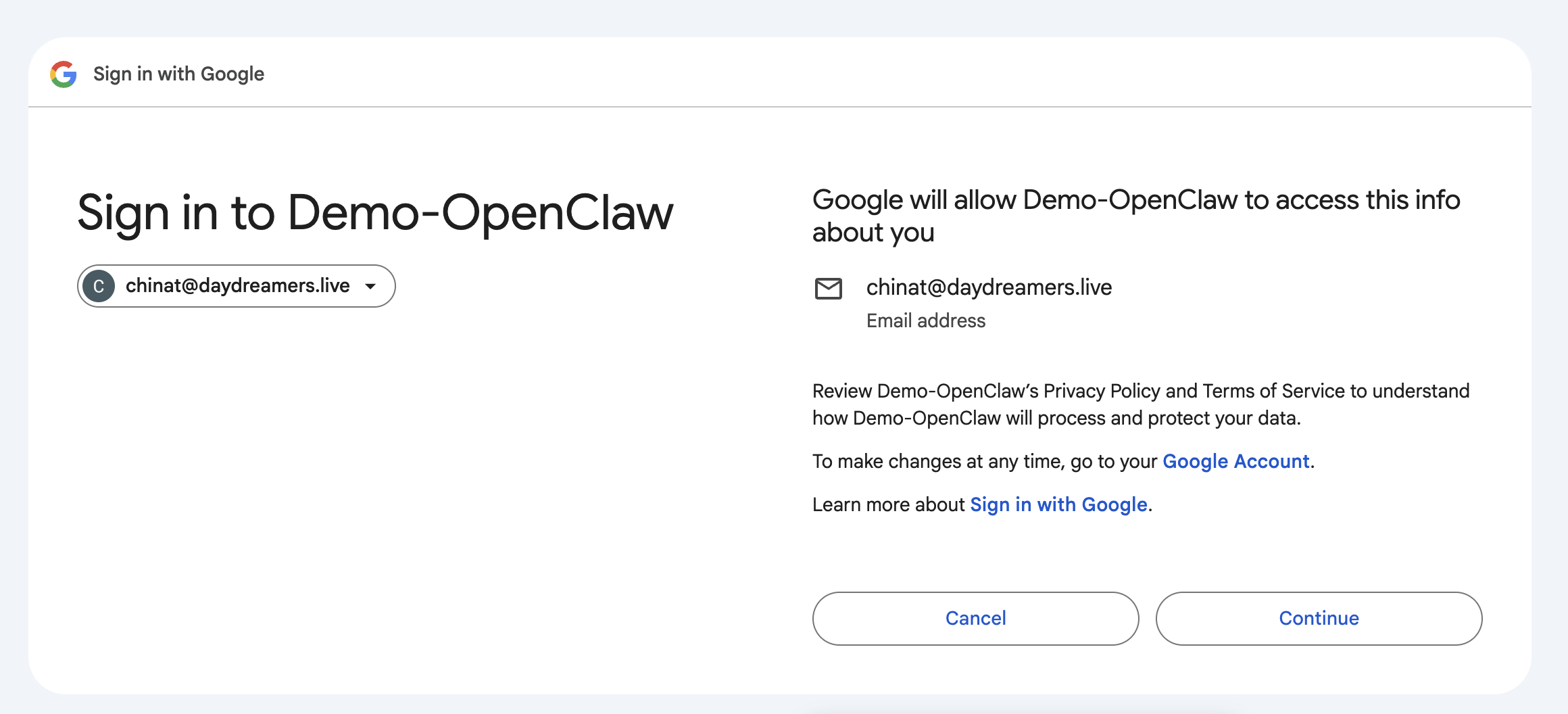
A Google sign-in page will open in your browser. Click Continue to grant access.
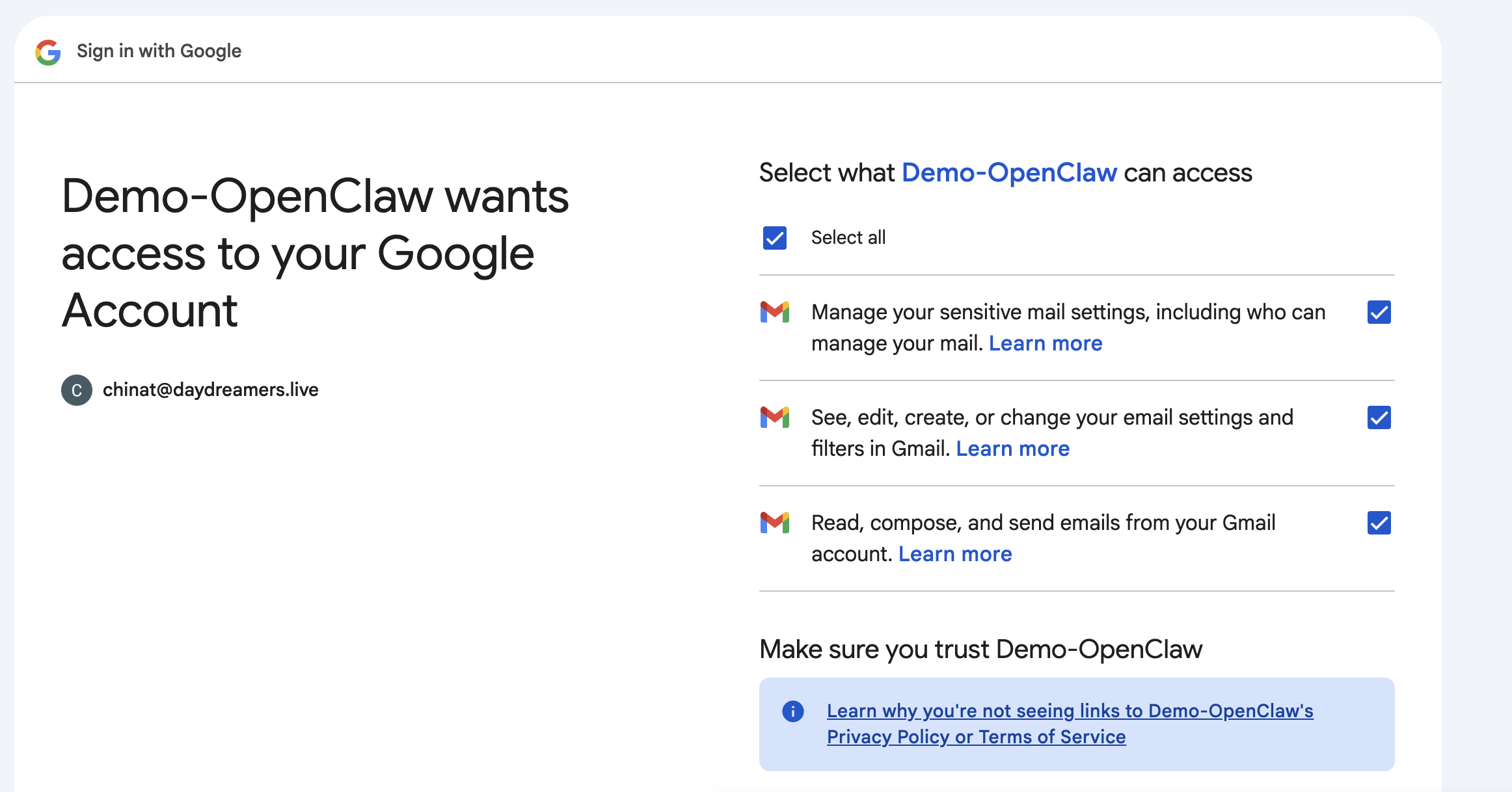
Next you'll see the permissions screen. Check Select all to enable all the APIs you set up earlier, then click Continue.
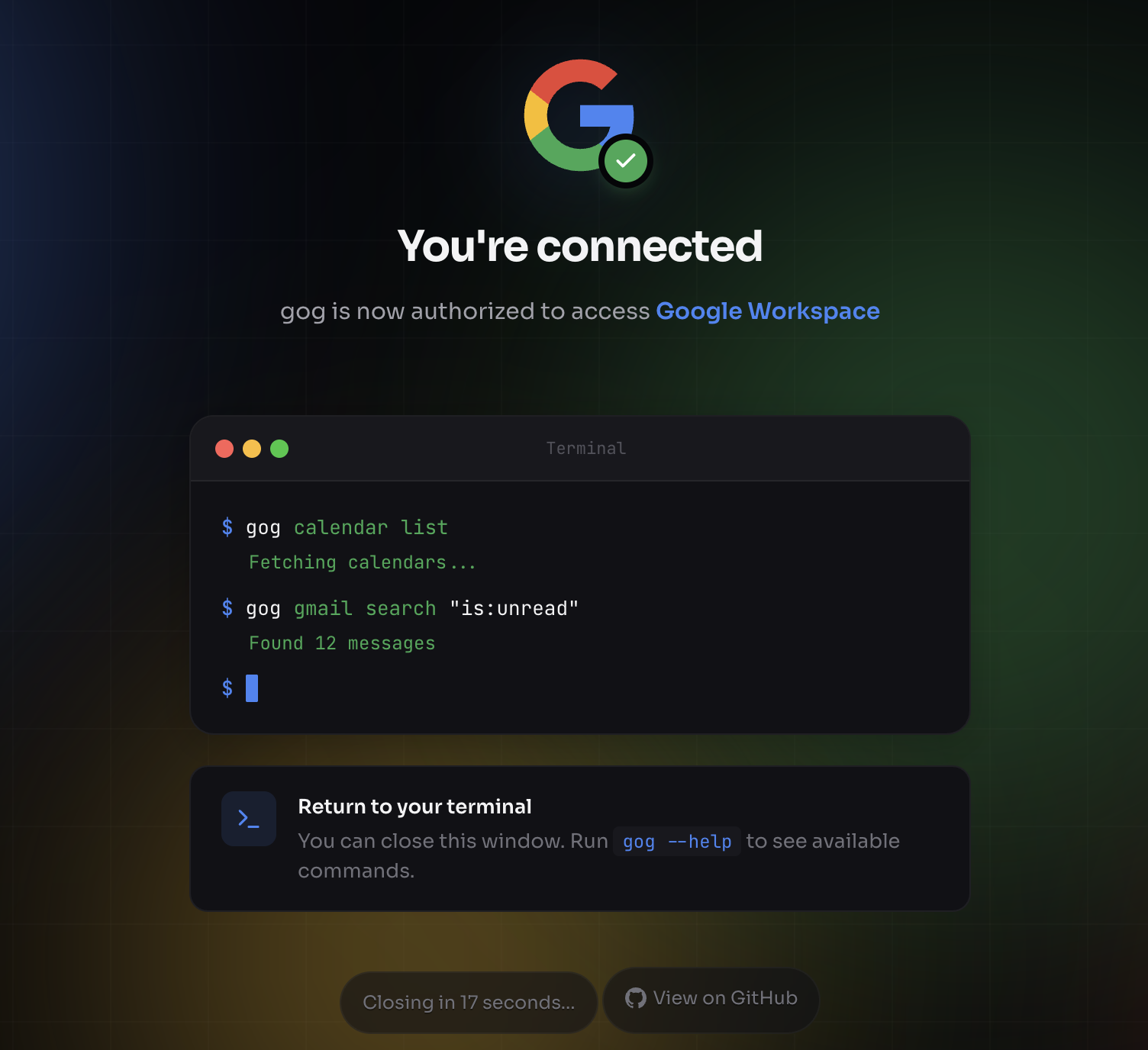
Once successful, you'll see this — gog is now authorized to access your Google Workspace. You're connected!
Let's verify everything works. Copy these test prompts into your agent. Help each other troubleshoot.
Paste this into OpenClaw to verify your Google connection works:
List my next 3 calendar events and summarize any emails I received today about meetings.
Brave Search is a privacy-focused search engine — like Google, but independent. It has an API that lets your OpenClaw agent search the web in real time. This is what powers Use Case 2 (Digital Twin deal analysis).
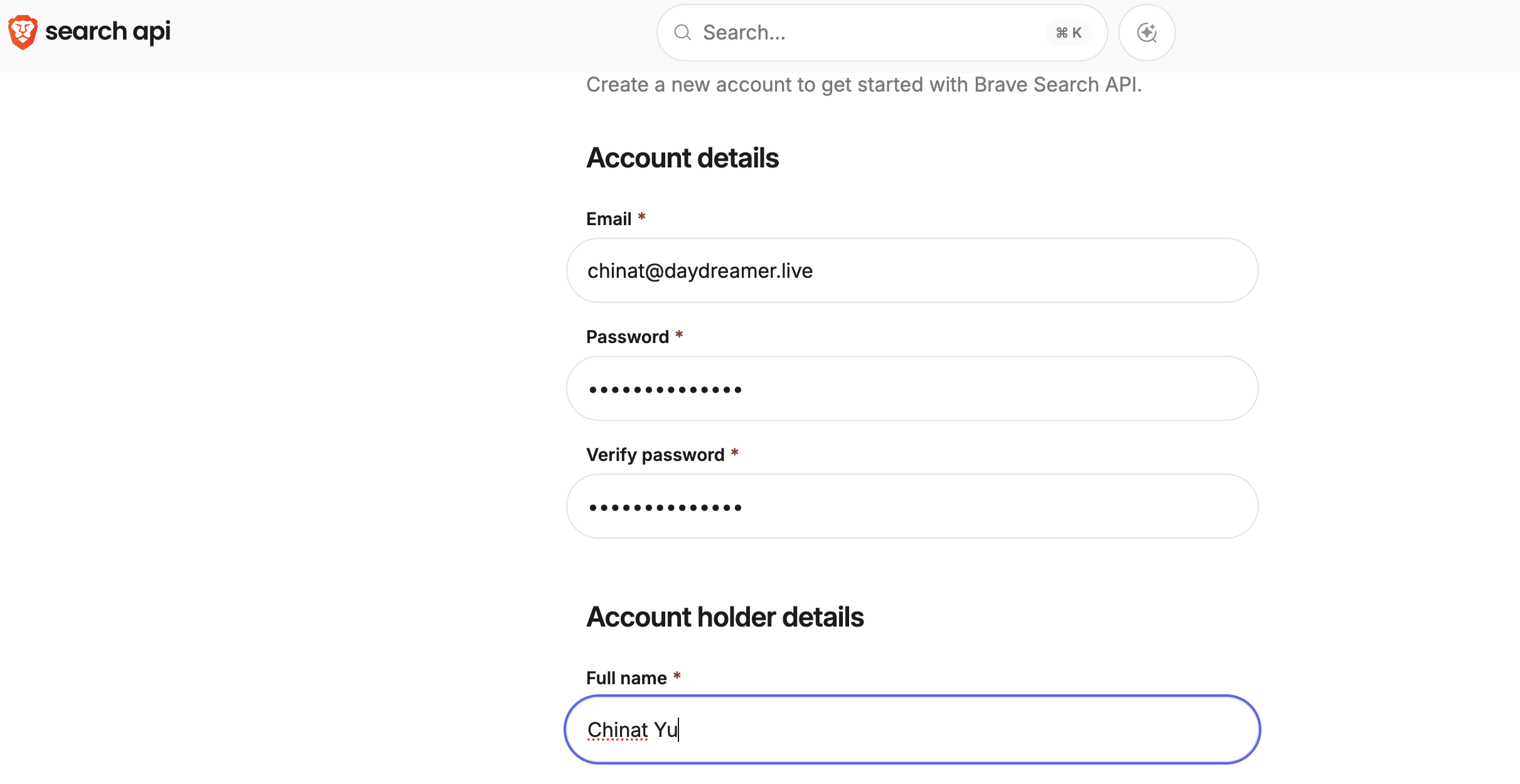
Go to brave.com/search/api and create an account with your email and password.
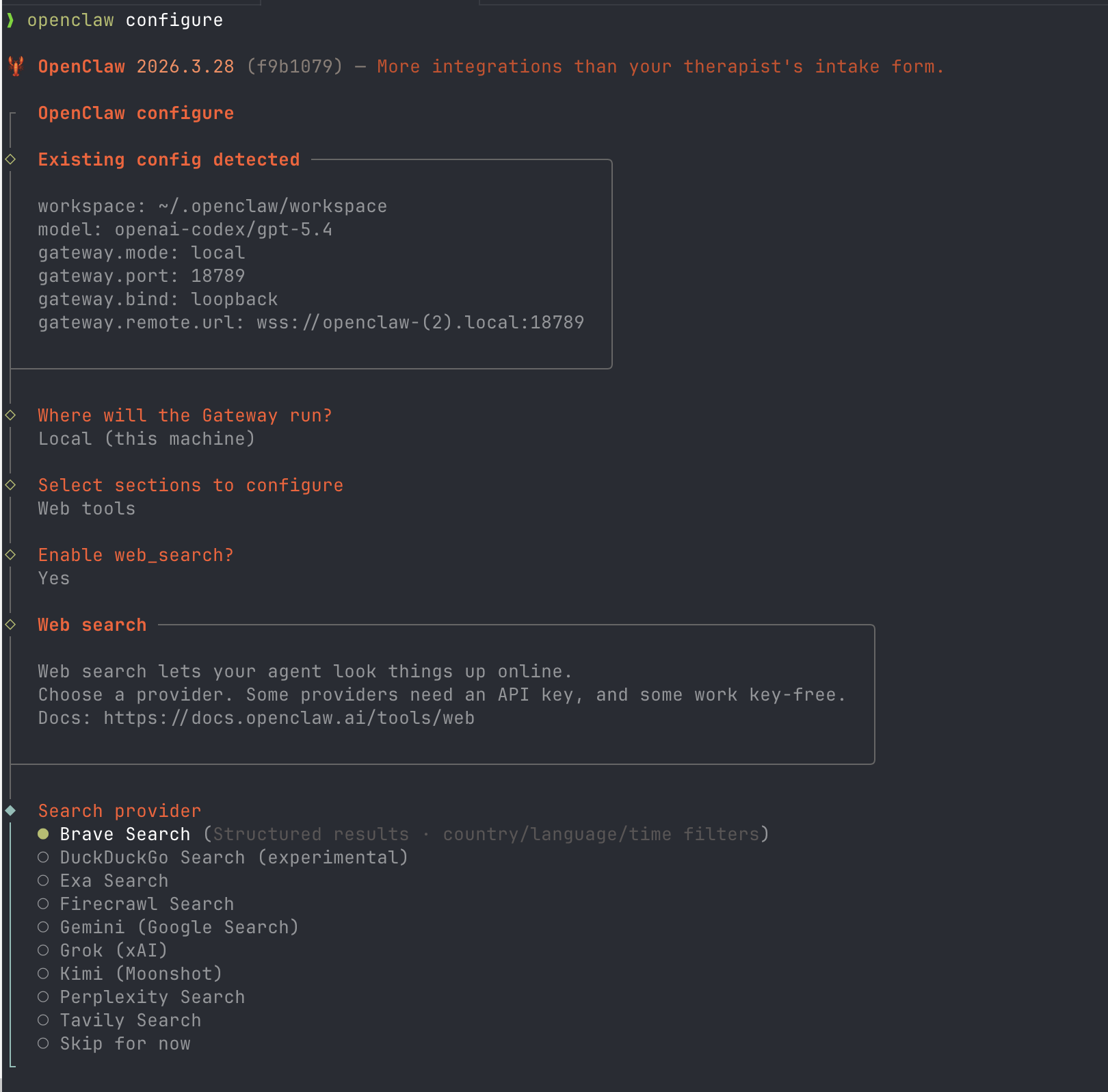
Run openclaw configure in your terminal → select Web tools → enable web_search → choose Brave Search → paste your API key when prompted.
Paste this into OpenClaw to verify it works:
Search the web for "Lovable dev AI" and give me a brief summary of what the company does.
Take a Zoom transcript, have OpenClaw parse it into structured action items, then delegate each task to sub-agents that handle email, calendar, and docs.
You are a meeting analyst. I'm going to give you a Zoom meeting transcript. Extract the following in a structured format:
1. Summary (3-5 sentences)
2. Key Decisions (what was decided, not what was discussed)
3. Action Items (format: [Owner] — [Task] — [Deadline if mentioned])
4. Open Questions (things that need follow-up)
5. Follow-ups (who needs to talk to whom about what)
Be specific with names. If no deadline, mark as "TBD". Group action items by owner.
Here's a sample transcript from a fictional meeting. We'll paste this into OpenClaw and watch the pipeline work.
Take these action items and for each one:
1. Add it to a Google Doc checklist with owner and deadline
2. Draft a brief email to each owner summarizing their tasks
3. Create a calendar event for any meetings that need scheduling
4. Flag anything that needs my review before sending
Show me the plan first — don't send anything yet.
Try parsing a transcript on your own
Use the sample transcript or bring your own. Parse it, review the output, and try delegating at least one action item.
Many of you said you want a "digital twin" — an agent that thinks like you. The secret? Give it your past decisions. Load your memos from Google Drive, then the agent researches AND analyzes from your perspective.
Upload decision memos, past deal notes, or investment criteria to a Google Drive folder. These teach the agent how you think.
The agent reads your memos, researches the company live, then writes the analysis through your lens — not a generic template.
I'll show you how I loaded my own decision memos into Google Drive, then asked the agent to analyze Lovable from my perspective.
I'm evaluating a potential partnership with Lovable (lovable.dev — AI-powered app builder). One of our community members works there.
First, read my past decision memos from Google Drive (folder: "Decision Memos"). These show how I evaluate deals — what I care about, what red flags I watch for, and how I weigh trade-offs.
Then, research Lovable using Brave Search and produce a personalized analysis:
1. Company Overview — what they do, size, traction
2. Partnership Fit — how does this align with MY goals and priorities?
3. What I'd Like — based on my past decisions, what would excite me about this?
4. What I'd Worry About — based on my patterns, what concerns would I raise?
5. Comparable Decisions — reference any similar deals from my memos
6. Recommendation — what would I likely decide, and why?
Write this as if you ARE me — use my voice, my frameworks, my priorities. Save to Google Docs.
Anna, Geoff, and several of you asked for this in Session 1. Your agent reads your meeting notes, conversations, or ideas — extracts the interesting insights — and drafts a LinkedIn post. Then it actually posts it.
I want to write a LinkedIn post based on the following notes from a recent meeting/conversation:
[paste your notes or key takeaways here]
Write a LinkedIn post that:
1. Opens with a hook — something surprising, contrarian, or relatable
2. Shares the insight — what I learned or realized (be specific, not generic)
3. Makes it personal — use "I" voice, include a real detail from the conversation
4. Ends with a question or call-to-action — invite engagement
5. Keep it under 200 words — short posts perform better
6. Add 3-5 relevant hashtags
Show me the draft first. Once I approve, post it to my LinkedIn.
Pick a use case and build it
Choose one of the three use cases (or design your own) and run it end-to-end on your agent. Help each other troubleshoot.
| Concept | What It Means |
|---|---|
| Channel connections | Giving your agent access to real tools (Google, Search, files) |
| Pipeline thinking | Break any workflow into Input → Process → Output |
| Structured prompts | Templates that produce consistent, usable output |
| Digital Twin | Load your memos into Drive so the agent analyzes like you |
| Real output | Don't just generate text — post to LinkedIn, send emails, create events |
| Human-in-the-loop | Always review before the agent acts on your behalf |
The tools are the same for everyone. The power comes from knowing which ones to connect and how to prompt them.
The best AI agents aren't the smartest — they're the ones embedded in your actual workflow.
Questions, ideas, show & tell?
Share what you built today. Ask anything. Help each other troubleshoot.
Your feedback helps us make this series better. See you next week!
Have any questions? Drop them in the Zoom chat.